 vardenis
Home PC security checklist
Most of what protects a home computer is free and already built in. Work through these steps once, then revisit them every few months.
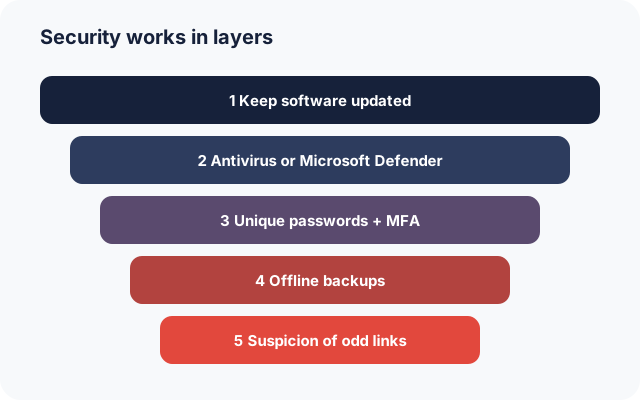
1. Keep everything updated
Many attacks exploit vulnerabilities that already have a fix. Turn on automatic updates for your operating system (Windows Update or macOS Software Update), your browser and your apps. Replace devices and operating systems that no longer receive security updates. Windows 10, for example, reached the end of standard support in October 2025.
2. Make sure real-time malware protection is on
On Windows, open Windows Security → Virus & threat protection and check that one product is providing real-time protection. Microsoft Defender is included free, and a third-party product replaces it when installed. Don’t run two real-time scanners at once. On a Mac, keep macOS’s built-in protections switched on and install apps from the App Store or identified developers.
3. Use a standard account for daily work
Using an account without administrator rights for everyday tasks limits what malicious software can change. Keep a separate administrator account for installing software.
4. Protect your accounts
- Use a unique password for every account, ideally stored in a password manager.
- Turn on multi-factor authentication (MFA) for email first, because email is used to reset everything else. Then do the same for banking and social media.
- Check whether your email address appears in known breaches with a reputable service such as Have I Been Pwned, and change any affected passwords.
5. Back up, and keep one copy offline
Follow the widely recommended “3-2-1” idea: three copies of important data, on two different types of storage, with one copy kept off-site or offline. An external drive that you disconnect after each backup can’t be encrypted by ransomware running on your computer. Test restoring a file now and then.
6. Secure your home network
- Change your router’s default administrator password and keep its firmware updated.
- Use WPA2 or WPA3 encryption with a strong Wi-Fi password.
- Use a guest network for visitors and smart-home devices where your router supports it.
7. Treat unexpected messages with suspicion
Phishing remains one of the most common ways in. Be wary of urgent messages asking you to log in, pay or open an attachment. Go to the website directly instead of clicking the link. Genuine security software never shows alarming pop-ups on websites telling you to call a number.
8. Encrypt your device
Turn on device encryption (BitLocker or Device Encryption on Windows, FileVault on macOS), especially on laptops, so a lost or stolen device doesn’t expose your files.
9. Review every few months
Remove apps and browser extensions you no longer use, check which apps start automatically, and look over your subscriptions and their renewal dates.
This guide contains no partner links. It reflects general good practice as of 5 October 2026. For product-specific details, the vendor’s own documentation prevails. Illustrations are original works by vardenis.online. Corrections: info@vardenis.online.
Sources
- ENISA, cyber hygiene. enisa.europa.eu
- UK National Cyber Security Centre, “Cyber Aware” advice. ncsc.gov.uk
- Microsoft Support, “Stay protected with Windows Security”. support.microsoft.com
- Microsoft, Windows 10 end of support. microsoft.com
- US Cybersecurity and Infrastructure Security Agency (CISA), “Secure Our World”. cisa.gov
- Have I Been Pwned. haveibeenpwned.com